Sharing from a Windows PC? → HanShare for Windows User Guide
HanShare User Guide
Show your phone or tablet screen to everyone in the room — instantly. Viewers just open a browser; no app needed.
1. What is HanShare
HanShare shows your screen to the people around you. Use it to go through documents in a meeting room, demonstrate in a classroom, show maps or photos on site, or watch a video together at a family gathering.
- No app for viewers. They scan a QR code with their phone camera and your screen opens in the browser.
- Many viewers at once. The screen is compressed once and shared, keeping the load on your device low.
- Low latency. Movement on your screen shows up almost immediately.
- No outside servers. Your screen is sent only to nearby devices on the same network (Wi-Fi or wired), and nothing is recorded or stored.
- When you rotate your screen, the viewers’ screens follow — full-screen videos fill the view too.
2. What you need
| Person showing the screen | An Android 11 or later phone or tablet (most devices released since 2020) with HanShare installed |
|---|---|
| Viewers | Any device with a browser — Android, iPhone, iPad or PC. The latest Chrome or Safari is recommended. |
| Network | If everyone is on the same Wi-Fi (the sharing device may also use a wired network), HanShare uses it. If not, HanShare opens its own Wi-Fi (no internet required). |
3. Choosing a connection
Choose at the top of the start screen. Your choice is remembered next time.
| Current network (default) | Create hotspot | |
|---|---|---|
| When | Everyone is on the same router’s network — office, home, classroom. The sharing device can use wired Ethernet (USB) instead of Wi-Fi | No Wi-Fi around, or guest Wi-Fi that blocks device-to-device traffic |
| Viewers | Scan one QR code | Scan two QR codes — ① join the Wi-Fi, ② watch |
| Viewers’ internet | Keeps working | Not available on this Wi-Fi while watching |
| Address | Stays the same if the router gives the same address (you can reserve it in the router) | Wi-Fi name, password and address change every time you start |
4. Sharing (the person showing the screen)
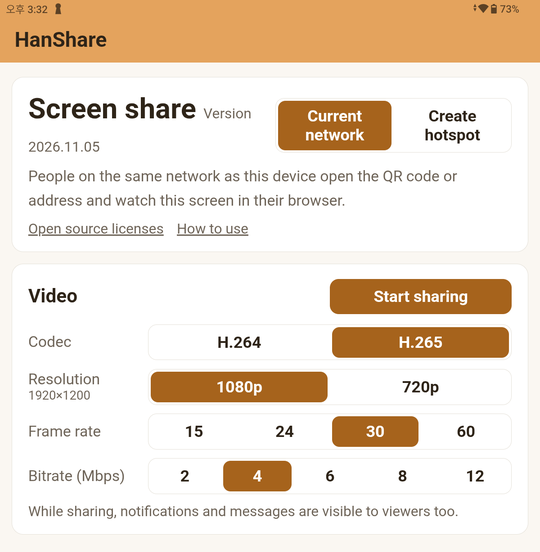
- Open HanShare and choose a connection ([Current network] or [Create hotspot]).
- Tap [Start sharing]. Android asks whether to allow screen recording (sharing) — choose the entire screen and start.
- When the QR code appears, show it to your viewers.
4-1. Sharing over the current network
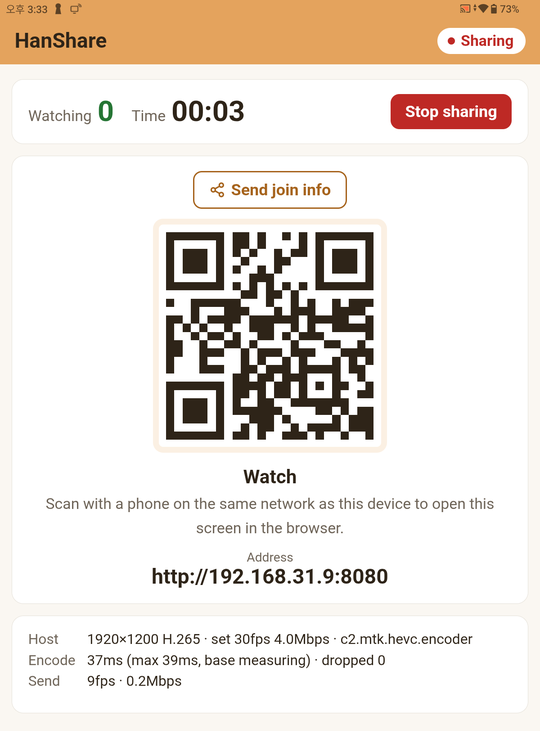
Viewers only need to be on the same network (the same router’s Wi-Fi) as your device and scan the QR code. They can also type the address shown under the QR code into a browser.
4-2. Sharing over a hotspot
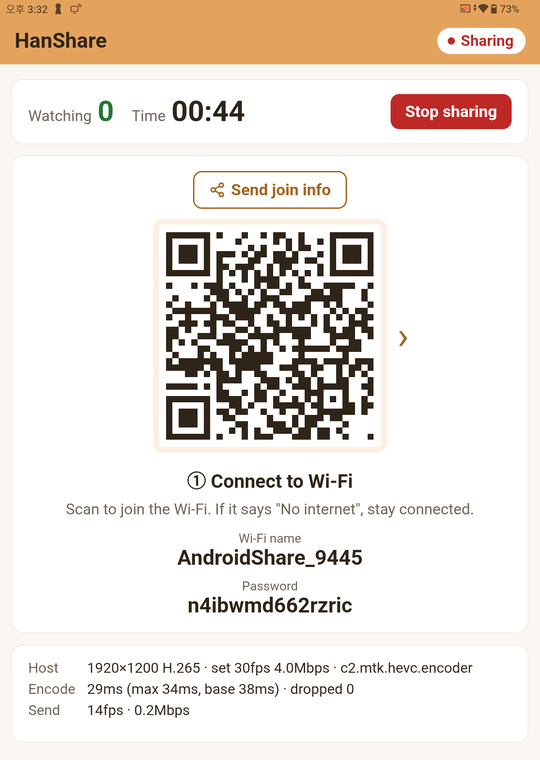
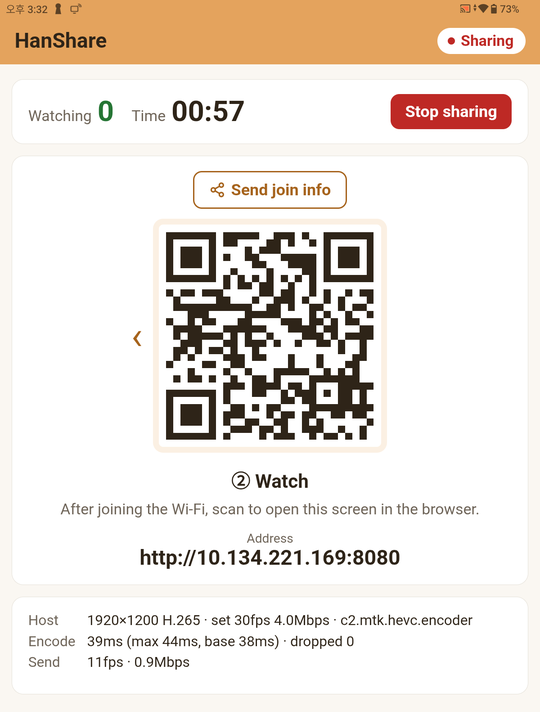
- Viewers scan QR ① to join the Wi-Fi. If their phone says "No internet", they should stay connected.
- Tap › to the right of the QR code, or swipe the QR code from right to left, to show QR ② (tap ‹ or swipe the other way to go back to ①).
- When viewers scan QR ②, your screen opens in their browser. When someone joins, it returns to ① automatically for the next person.
4-3. While sharing
- Watching — how many people are viewing; Time — how long you have been sharing
- [Send join info] (above the QR code) — send how to connect via WhatsApp, SMS and so on: the Wi-Fi name, password and address in hotspot mode, the address in current network mode.
- [Stop sharing] — ends sharing. You can also use [Stop] in the notification. Viewers immediately see "Sharing has ended", and this device shows the stopped screen (4-4 below).
- Video info (bottom box) — the resolution, codec and settings being sent, the encoding time, and the actual frame rate and data rate. It shows "still" when the screen isn't changing.
- After you start, leave HanShare and open any app — viewers see whatever is on your screen.
4-4. Stopped screen
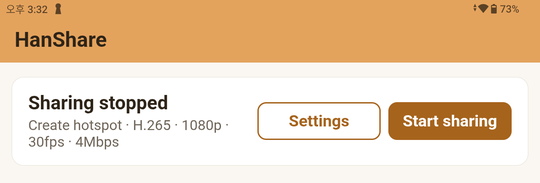
When sharing ends, you see "Sharing stopped" and the current settings (connection, codec, resolution, frame rate, bitrate). [Start sharing] starts again right away with the same settings (Android asks for screen recording permission each time), and [Settings] opens the start screen to change the connection or video settings. Settings can't be changed while sharing.
5. Watching (the people viewing)
- Scan the QR code with your phone camera and open the link (in hotspot mode, ① then ②).
- The screen opens in your browser. Tap it once to show the [Stats] and [Full screen] buttons.
- When the person sharing rotates the screen, your view rotates too.
[Stats] shows a small box at the top left with the sender's side (host settings, encoding, sending), your side (receiving, playback) and the estimated total delay, updated every second. Drag the box to move it; whether it's on and where it sits are remembered by that browser. If your device can't play the video, the reason (codec or resolution) appears in yellow at the bottom of the screen.
Received a link instead? In hotspot mode, first join the Wi-Fi with the name and password in the message, then open the address. Text on the viewer page follows your browser language (English, Korean, Japanese or Chinese).
6. Video settings
Change these under [Video] on the start screen. While sharing, tap [Stop sharing] and then [Settings] on the stopped screen. If unsure, leave them as they are.
| Setting | Description |
|---|---|
| Codec | Only codecs this device can encode in hardware are listed. H.264 plays in almost every browser. H.265 sends the same quality with less data, but some browsers (especially on PCs) can’t play it. If someone can’t play the video, switch to H.264. |
| Resolution | 1080p / 720p. Devices with a screen larger than 1080p (long side over 1920) also show Native. Lower it for many viewers or weak Wi-Fi. This device's own resolution is shown under the name. |
| Frame rate | 15, 24, 30, 60. Use 30–60 for video and games, 15–30 for documents and photos. If your device can’t keep up, HanShare adjusts automatically to avoid delay. |
| Bitrate | Data sent per second (Mbps). Higher is sharper, but Wi-Fi usage grows with each viewer. Usually 4–6. |
7. Good to know
- While sharing, everything on your screen — including notifications and messages — is visible to viewers. Turn on Do Not Disturb if needed.
- Apps with protected content (some video or banking apps) appear black.
- Videos look small when your screen is in portrait. Use the video app’s full screen so viewers see it full size too.
- In hotspot mode, viewers should not disconnect when their phone says "No internet". If it switches to mobile data, they may lose the picture.
- Sharing uses a lot of battery — plug in a charger for long sessions.
8. Troubleshooting
- The camera doesn’t read the QR code
- Some built-in camera apps can’t read QR codes. Use the camera icon in the Google search bar (Google Lens) or "Scan QR code" in Quick Settings. You can also type the address.
- "Not connected to a network" when starting with Current network
- Connect the sharing device to Wi-Fi or a wired network, or choose [Create hotspot].
- The page doesn’t open after scanning
- Current network: make sure the viewing device is on the same network (the same router). Guest and public Wi-Fi often block device-to-device traffic — use [Create hotspot]. Hotspot: check that the viewer joined Wi-Fi ① first and didn’t drop it because of "No internet".
- "This browser can’t play this video format"
- The browser can’t play H.265. Switch the codec to H.264 on the sharing device, or open the page in the latest Chrome or Safari.
- "Can't play" or "has trouble playing" appears at the bottom
- The viewing device (browser) can't handle that codec, resolution or frame rate. Ask the person sharing to switch the codec to H.264 or lower the resolution (1080p/720p) or frame rate.
- The picture stutters or lags
- Move the devices closer and lower the resolution or bitrate. More viewers means more Wi-Fi traffic. [Stats] on the viewing page shows the cause — if the send frame rate is below the setting and encoding keeps showing "dropped", the sharing device can't keep up, so lower the resolution or frame rate. If "lost" grows on receive or the delay is high, check the Wi-Fi.
- "Disconnected" appears
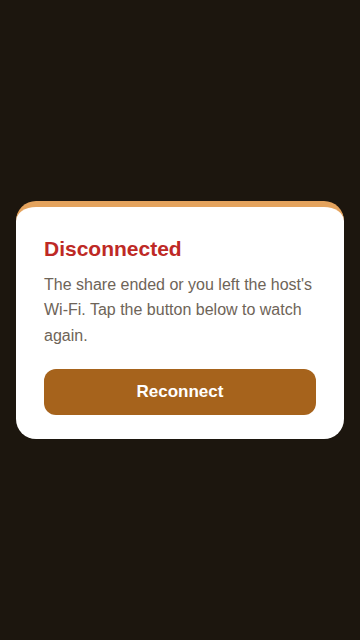
- Sharing ended or you left the Wi-Fi. When sharing starts again, tap [Reconnect]. In hotspot mode, restarting changes the Wi-Fi name and password, so scan ① again.
9. Privacy and security
- No sign-up or login, and no personal data is collected.
- Your screen is encrypted (WebRTC DTLS-SRTP) and sent only to nearby devices on the same network — never through our servers or the internet.
- Nothing is recorded or stored. Streaming stops as soon as you stop sharing.
Details: HanShare Privacy Policy
10. Contact
HanVision Co., Ltd. · support@hanvision.xyz