Sharing from an Android phone or tablet? → HanShare User Guide (Android)
HanShare for Windows User Guide
Show your PC screen to everyone in a meeting room or classroom — instantly. Viewers just open a browser on their phone, tablet or PC; no app needed.
Download (coming soon)
1. What is HanShare for Windows
A program that shows your PC screen to the people around you. It works the same way as HanShare for Android and uses the same viewer page.
- Viewers don’t need an app. They scan the QR code with their phone camera and the screen opens in the browser.
- Many people can watch at once. The screen is compressed once and shared out.
- Low delay, light on your PC. Compression runs on the graphics hardware, so it uses almost no CPU.
- No outside servers. The screen goes only to devices on the same network (Wi-Fi or wired) and is never recorded or stored.
2. What you need
| The person sharing | A Windows 10/11 PC. Intel and AMD graphics can use both H.265 and H.264; other graphics (NVIDIA etc.) use H.264 in compatibility mode. |
|---|---|
| The people watching | Any device with a browser — Android, iPhone, iPad, PC. A recent Chrome, Safari or Edge is recommended. |
| Network | The PC and the viewers must be on the same network (Wi-Fi or wired on the same router). No internet connection is needed. |
3. Running it
- Unzip the downloaded file into any folder. No installation is needed.
- Run hanshare.exe.
- If "Windows protected your PC" appears, click [More info] → [Run anyway].
- If a firewall prompt appears the first time, check [Private networks] and click [Allow access]. Without this, viewers can’t open the screen.
- A HanShare tray icon appears at the bottom right of the taskbar (notification area), and the HanShare window opens in your browser.
Closing the HanShare window (browser tab) doesn’t stop HanShare or the sharing. To open it again: tray icon → [Open HanShare]. To quit completely: tray icon → [Quit HanShare], or [Quit HanShare] at the bottom of the window.
4. Sharing (the person showing the screen)
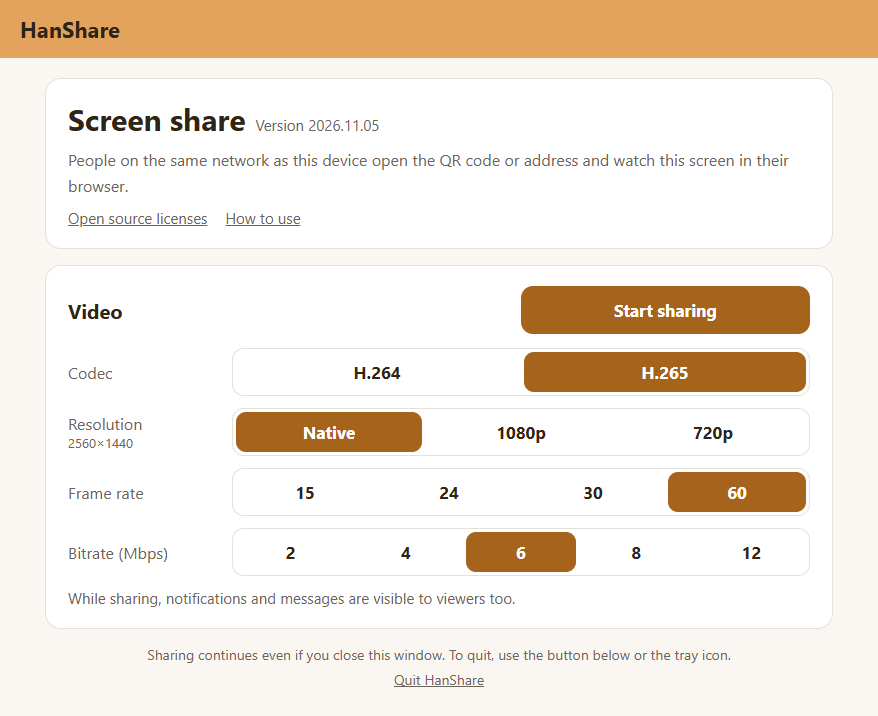
- Check the video settings (section 6) and press [Start sharing]. If unsure, leave them as they are.
- When the QR code appears, show it to the viewers.
4-1. While sharing
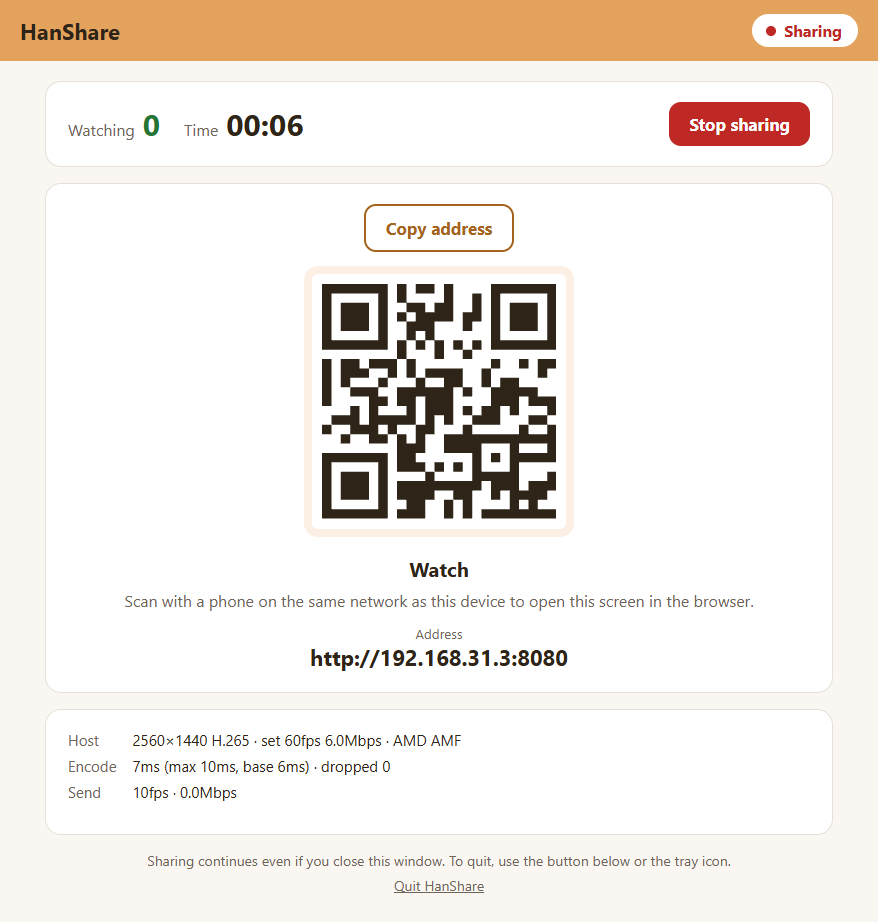
- Watching — how many people are watching; Time — how long you’ve been sharing
- [Copy address] (above the QR) — copies the viewing address to send by messenger or email. Viewers can also type the address shown under the QR into their browser.
- [Stop sharing] — ends sharing. You can also use tray icon → [Stop sharing]. Viewers immediately see "Sharing has ended", and the window switches to the stopped screen (4-2 below).
- Video info (bottom box) — resolution, codec, settings and encoder; encoding time; actual frame rate and data rate being sent. A low frame rate is normal when the screen isn’t changing.
- While sharing, the tray icon shows a red dot; hover over it to see the number of viewers.
4-2. Stopped screen
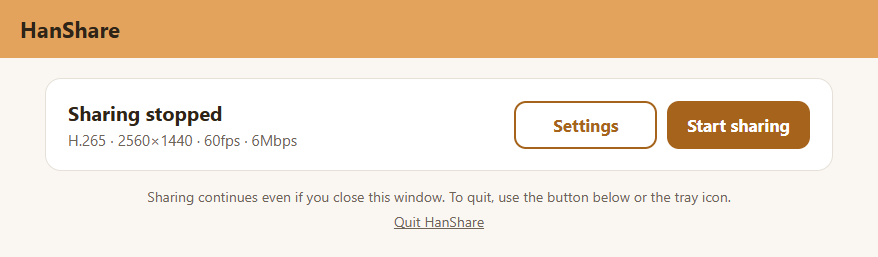
When you stop, "Sharing stopped" and the current settings (codec, resolution, frame rate, bitrate) are shown. [Start sharing] starts again right away with the same settings; [Settings] goes to the video settings. Settings can’t be changed while sharing.
5. Watching (the people viewing)
Scan the QR with a phone camera and open the link — the screen appears in the browser. It’s the same viewer page as the Android version, with the same [Stats] and [Full screen] buttons and playback warnings — see Watching (Android guide).
6. Video settings
Change them under [Video] in the HanShare window. Your choices are kept for next time. While sharing, press [Stop sharing] and then [Settings] on the stopped screen.
| Setting | Description |
|---|---|
| Network | Shown only when the PC has more than one address (e.g. Wi-Fi and wired together). Usually leave it on [Automatic]; if viewers can’t connect, pick the address on the same network as the viewers. |
| Codec | Only codecs this PC can encode in hardware are shown. H.265 sends the same quality with less data, but some browsers can’t play it. H.264 plays in almost every browser. If someone can’t play the video, switch to H.264. |
| Resolution | 1080p / 720p. PCs with a screen larger than 1080p (long side over 1920) also get Native — the screen size you currently see (e.g. a 4K monitor at 150% scaling is 2560×1440). This PC’s resolution is shown under the name. |
| Frame rate | 15, 24, 30, 60. Videos: 30–60. Documents and slides: 15–30 is enough. |
| Bitrate | Data sent per second (Mbps). Higher is sharper but network use grows with the number of viewers. Usually 4–6. |
7. Good to know
- While sharing, everything on the screen — including notifications and messages — is visible to viewers. Turn on Do not disturb in Windows if needed.
- With multiple monitors, the main monitor is shared.
- The PC screen won’t turn off or go to sleep while sharing.
- For security, the lock screen and User Account Control (UAC) prompts aren’t sent. Meanwhile viewers see the last image and the HanShare window shows a notice.
- Sending to many people from a laptop on Wi-Fi may stutter. Use a wired connection if you can.
8. Troubleshooting
- The page doesn’t open after scanning
- Make sure the viewing device is on the same network (same router) as the PC. Guest and public Wi-Fi often block devices from reaching each other. It also won’t open if access wasn’t allowed at the first-run firewall prompt, or if the PC’s network is set to "Public" — go to Settings → Network & internet → properties of the connected network and choose Private network.
- "Unsupported video format" or "can’t play" appears
- The viewer’s browser can’t play H.265 or that resolution. Stop sharing, press [Settings], switch the codec to H.264 or lower the resolution to 1080p/720p, and start again.
- The picture stutters or lags
- Try a lower resolution or bitrate. A wired connection on the PC is much more stable with many viewers. The viewer’s [Stats] shows what’s happening — if received "loss" keeps rising or the delay is large, check the network.
- Only H.264 is offered, marked "compatibility mode"
- This PC’s graphics can’t be used for hardware compression directly, so a compatible method is used. Sharing works normally.
- I closed the HanShare window
- Open it again from the tray icon (notification area — click ^ if hidden) → [Open HanShare].
9. Privacy and security
- No sign-up or login, and no personal data is collected.
- Your screen is encrypted (WebRTC DTLS-SRTP) and sent only to nearby devices on the same network — never through our servers or the internet.
- Nothing is recorded or stored. Streaming stops as soon as you stop sharing.
- The HanShare window opens only on this PC. Other devices can’t change settings or start sharing.
Details: HanShare Privacy Policy
10. Contact
HanVision Co., Ltd. · support@hanvision.xyz